
Step 1: You Receive an Email from Xero
Xero will send you a notification that there is a document to sign. It will look like this image below. You must select ‘Review Documents’ at the bottom of the page to begin the process. You should be expecting this email. Cybersafety note - always take care before clicking on any links in emails.
.png)
Step 2: Log in to Xero Sign
When you click on that link from their email, a new browser window will open to a log in page.
When you click on that link from their email, a new browser window will open to a log in page.
.png)
If you have been previously logged into Xero Sign it will automatically go to that page and show the clients ‘To Do’ items.
Step 3: Sign the Document
When the browser screen opens directly, the document to be signed will load. You will need to click on ‘Start’ (1) in image below.
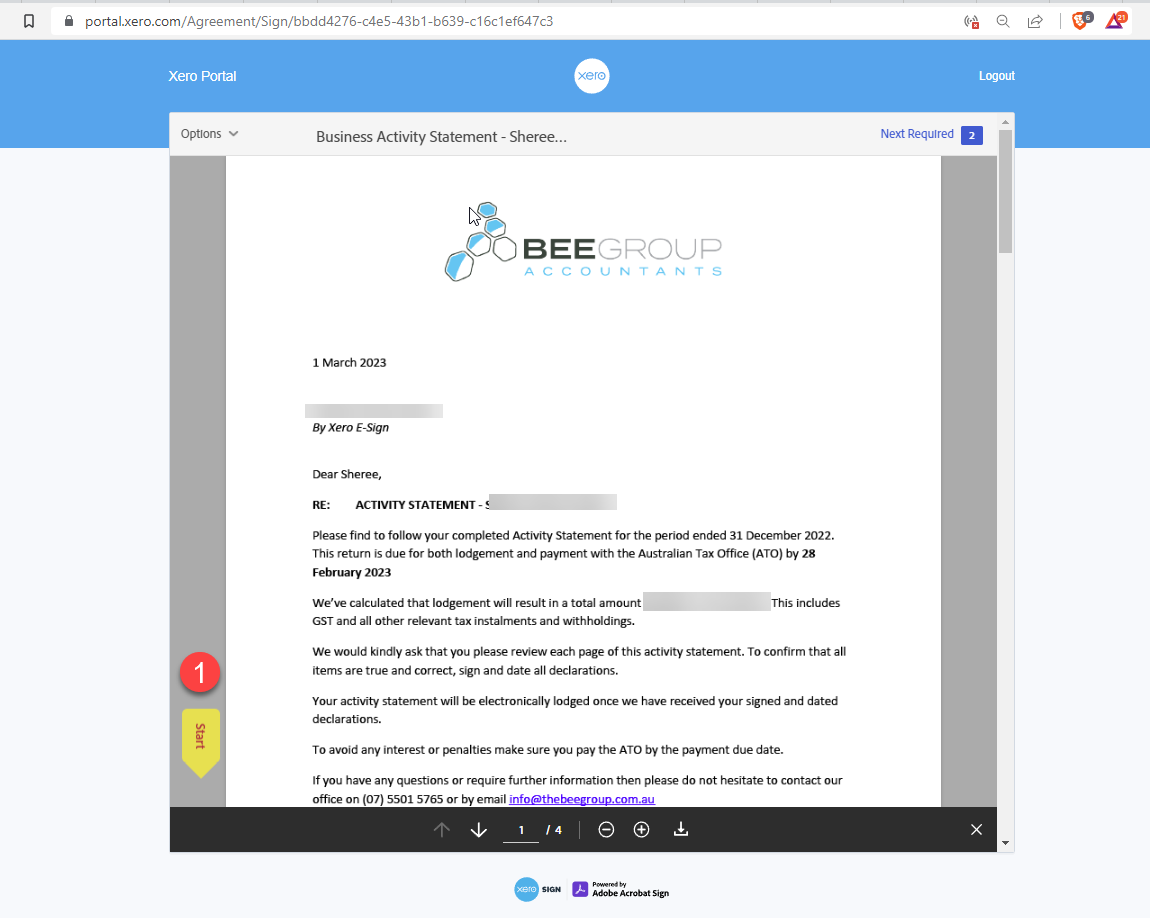
You will be taken to the first spot in the document that you need to sign. When there, click on the ‘Click here to sign’ yellow box (2)
.png)
When you click on this button a pop up will open that asks them to select your signature style. They can choose to type, draw or select an image. Once they have made their choice, they can then choose ‘Apply’.
.png)
The signature will be applied to the document and you will be returned to the main form. Once there, you need to click on ‘Next’ (3 in the image below)
.png)
When you click on the ‘Next’ button, they will be taken to the next place to sign in the document. You need to ‘Click here to sign’ (same as for image 2 above). It will automatically infill the same signature that they selected at image 2 above. You will only need to click on that box if they wish to change their signature.
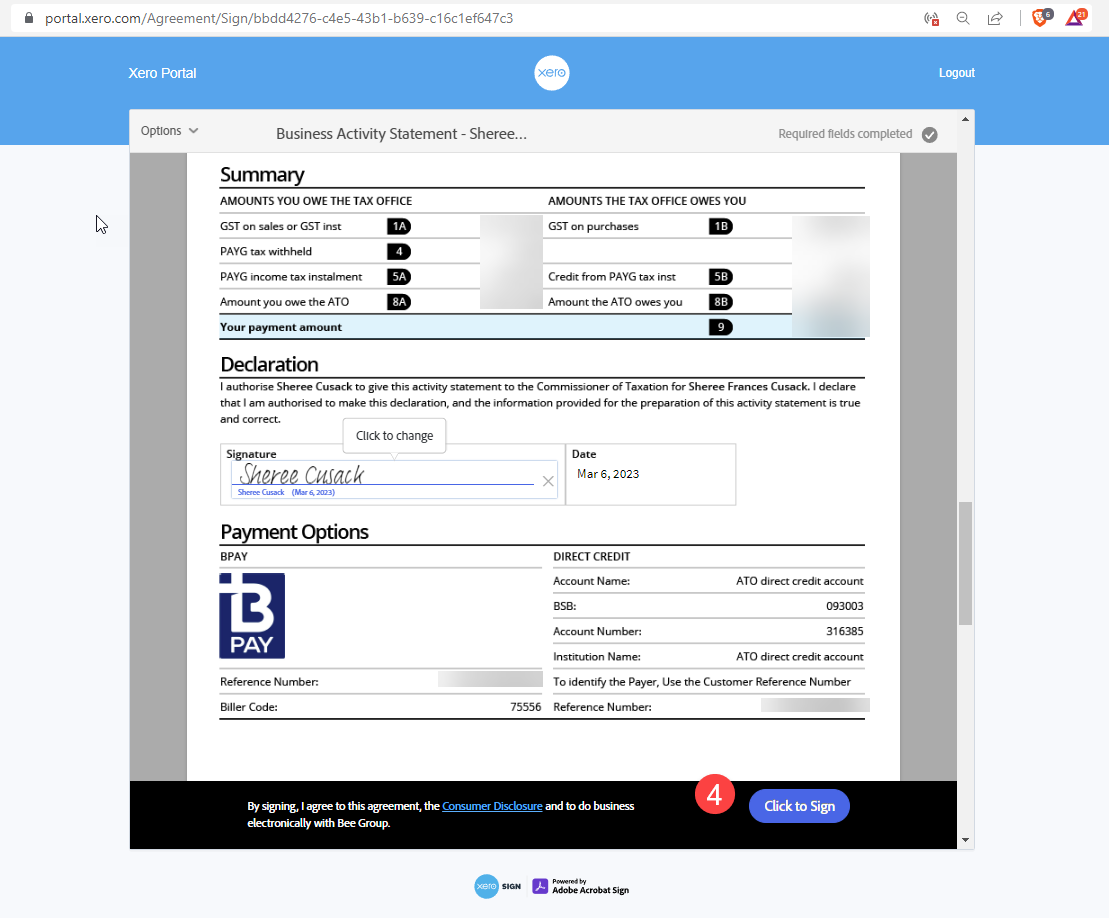
Once all signatures have been completed in the document the form will know and bring up a ‘Click to Sign’ box (image 4 below). You are to click this and the document will be completed and we will be notified.
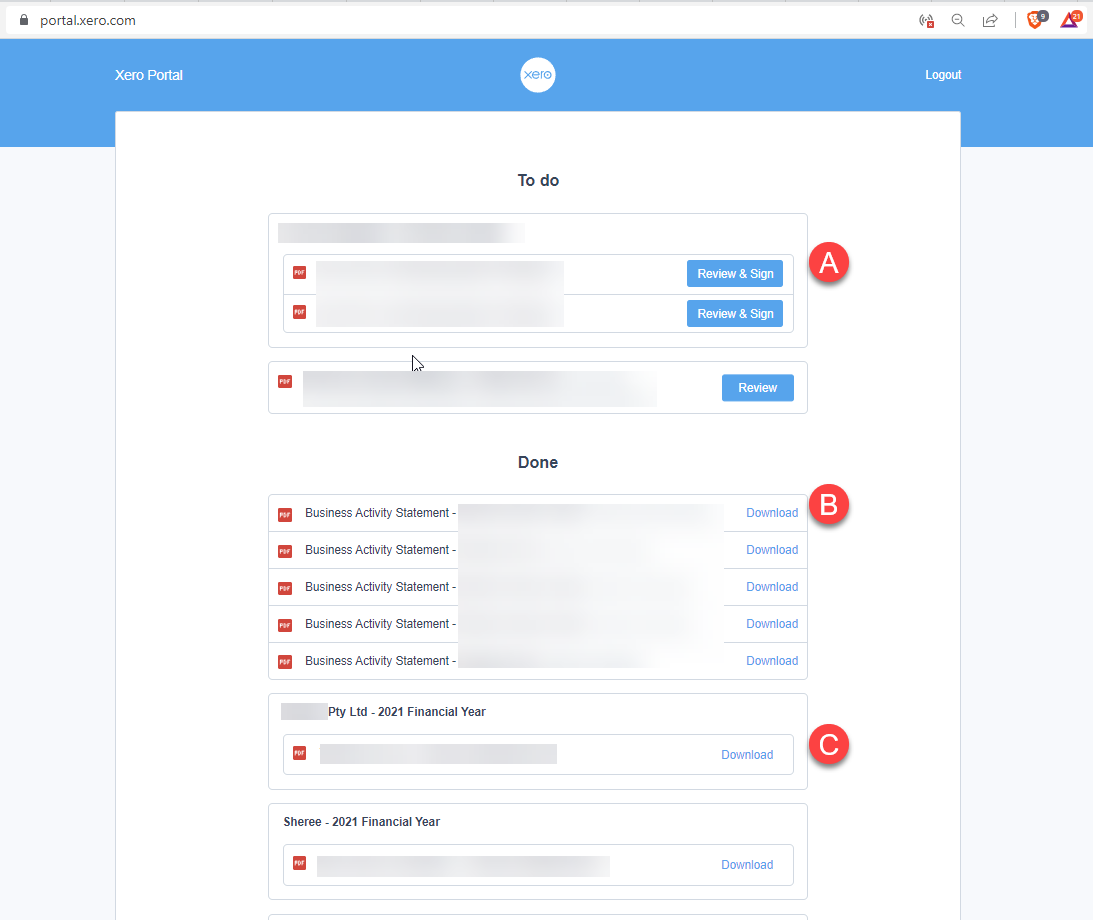
When the document is completed, you will be returned to their signing portal which might have any number of documents in there like the image that follows. These are separated into To-Do and Done sections.
A) TO DO. These are the documents that are pending ‘Review & Sign’ or ‘Review’
B) DONE. These are single documents that were sent to you for signature. These are usually BAS. They are able to be downloaded for your own records.
C) DONE. These are document packs that were sent out to the client and have been signed. A document pack is usually financial statements and tax returns. They are able to be downloaded by you for your own records.


 We use